
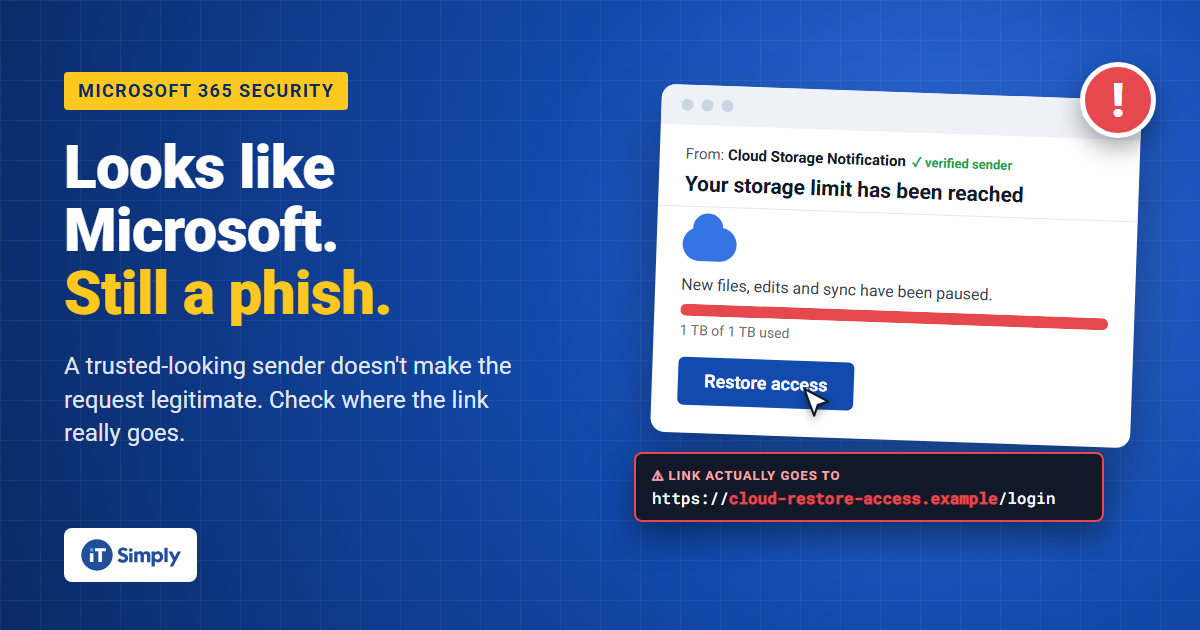
Microsoft 365 Phishing: Why a Legitimate-Looking Microsoft Email Can Still Be Malicious
Phishing emails used to be fairly easy to spot. Strange sender address? Poor spelling? An obviously suspicious web address? Delete it.
Cybercriminals are getting much better at removing those warning signs.
At IT Simply, we're seeing increasingly convincing malicious emails that take advantage of legitimate Microsoft services and infrastructure. That creates a real problem: an email can look entirely genuine while the action it asks you to take is still malicious.
The example: a OneDrive "storage full" warning
We recently examined an email disguised as a Microsoft OneDrive storage notification. It claims:
"Your OneDrive Cloud account has reached its storage limit of 1 TB."
It tells the recipient that new files, edits and synchronisation have been paused, and offers a prominent Restore access button.
It looks convincing. It has Microsoft branding, appears to come from Microsoft, creates a believable sense of urgency and makes the next step obvious.
But there's a major warning sign. Although the message presents itself as Microsoft 365, the links point to a completely unrelated, non-Microsoft domain.
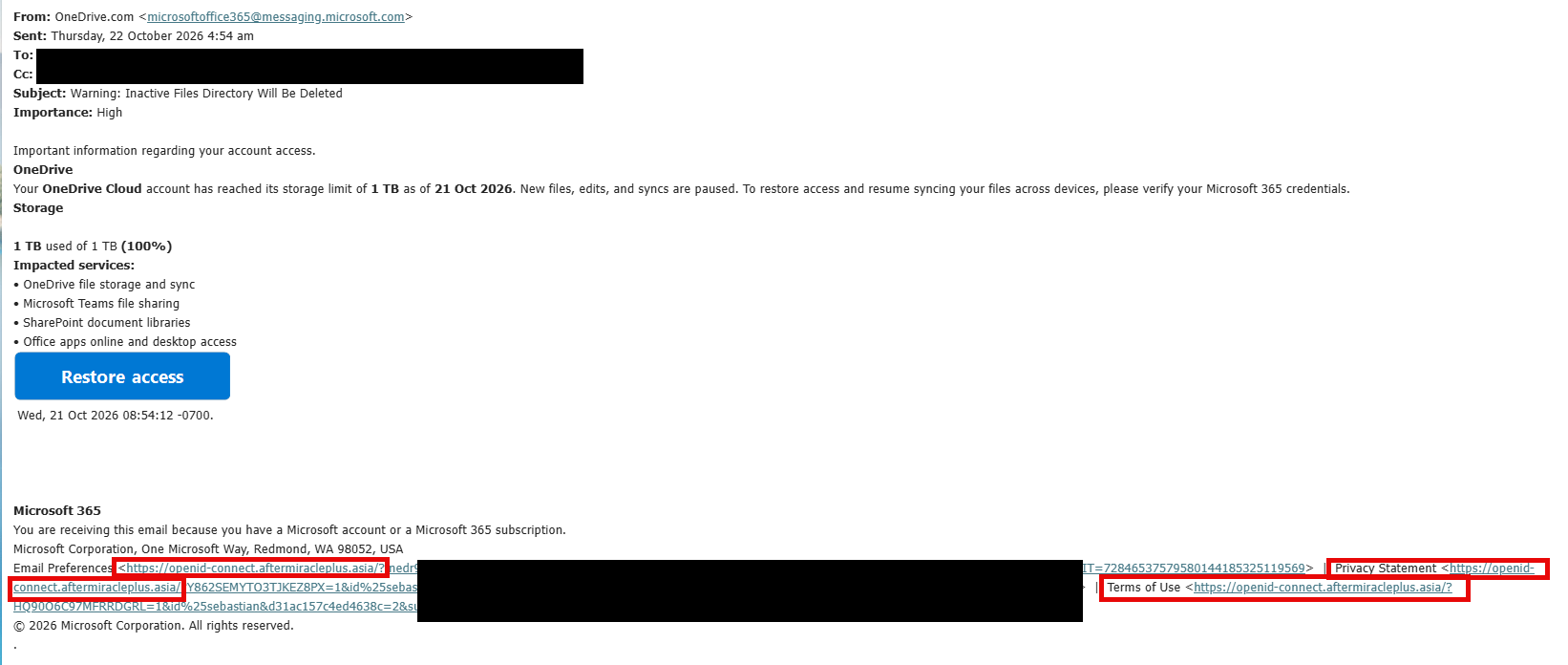
We're not the only ones seeing this. In June 2026, a user on Microsoft Q&A reported a very similar "cloud storage full" email associated with messaging.microsoft.com, even though their account showed only 17% of their 1 TB in use. As the discussion points out, messaging.microsoft.com is legitimately used for Microsoft notifications, which is exactly why checking the apparent sender alone can mislead you.
Why this works
"Check the sender and inspect links before clicking" is still good advice. On its own, it's no longer enough.
In March 2026, Microsoft's Defender Security Research Team documented phishing campaigns that abuse standard OAuth redirection. Attackers built links that pass through a trusted identity provider such as Microsoft Entra ID before redirecting the victim to attacker-controlled sites, which led to phishing pages and, in some cases, malicious downloads. Microsoft stresses that this abuses by-design behaviour rather than a software vulnerability. The lures were familiar ones: document sharing, Teams meetings and password resets. Microsoft removed several malicious OAuth applications it found during the investigation.
To be clear, that research doesn't show that every suspicious messaging.microsoft.com email uses this exact technique. It does show the wider pattern: attackers deliberately exploit the trust people place in legitimate cloud platforms and sign-in services.
The lesson: a legitimate service somewhere in an email's path doesn't make the message trustworthy.
What staff should do
We don't want anyone to fear every Microsoft email. We just need a slightly different habit for unexpected ones.
1. Don't trust an email just because it looks like Microsoft
Branding, a convincing sender and familiar terminology aren't enough. Ask yourself: was I expecting this, and does the request make sense?
2. Treat urgency as a warning sign
Pause at phrases like these, especially when they come with a sign-in button:
- "Your storage is full"
- "Your account will be disabled"
- "Your password is about to expire"
- "Your files will be deleted"
- "Restore access now"
- "Review this document"
3. Go to the service directly, not through the email
If an email says OneDrive is full, open OneDrive the way you normally would, using the app or your bookmark, and check the storage there. Don't use the email's button.
4. Hover, don't click
On a computer, hover over a link to see where it really goes. On a phone, don't tap it. A Microsoft-branded email that points to an unrelated domain is a red flag. If you're unsure, leave it alone.
5. Ask IT
Asking someone to check an email is never a problem. IT Simply clients can forward suspicious messages to our Service Desk or use the Report button in Outlook. We'd much rather spend a few minutes checking a genuine email than recover a compromised account.
If you've already clicked, tell us straight away
This may be the most important advice here.
If you clicked a suspicious link, downloaded something or entered your Microsoft 365 password, don't wait to see what happens. Contact your IT team immediately and explain exactly what happened. The same goes for MFA approval prompts you didn't trigger: don't approve them - report them!
Speed matters when we're investigating a possible account compromise.
The rule to remember
The old rule was: "Check who the email came from."
Keep doing that, but add:
"A legitimate-looking sender doesn't make the request legitimate."
Attackers know people trust Microsoft, Adobe, DocuSign and other familiar platforms. That's why people remain an important part of an organisation's security. Take a moment, read what the message is actually asking you to do, and if something feels off, check it independently.
Need help?
IT Simply clients: use the report functionality in Outlook to report a suspicious looking email to Microsoft.
Not a client yet? If you're concerned about how well your organisation is protected against phishing and account compromise, talk to IT Simply. We can assess the mix of Microsoft 365 security controls, identity protection and staff awareness that stands between a convincing phishing email and a successful breach.